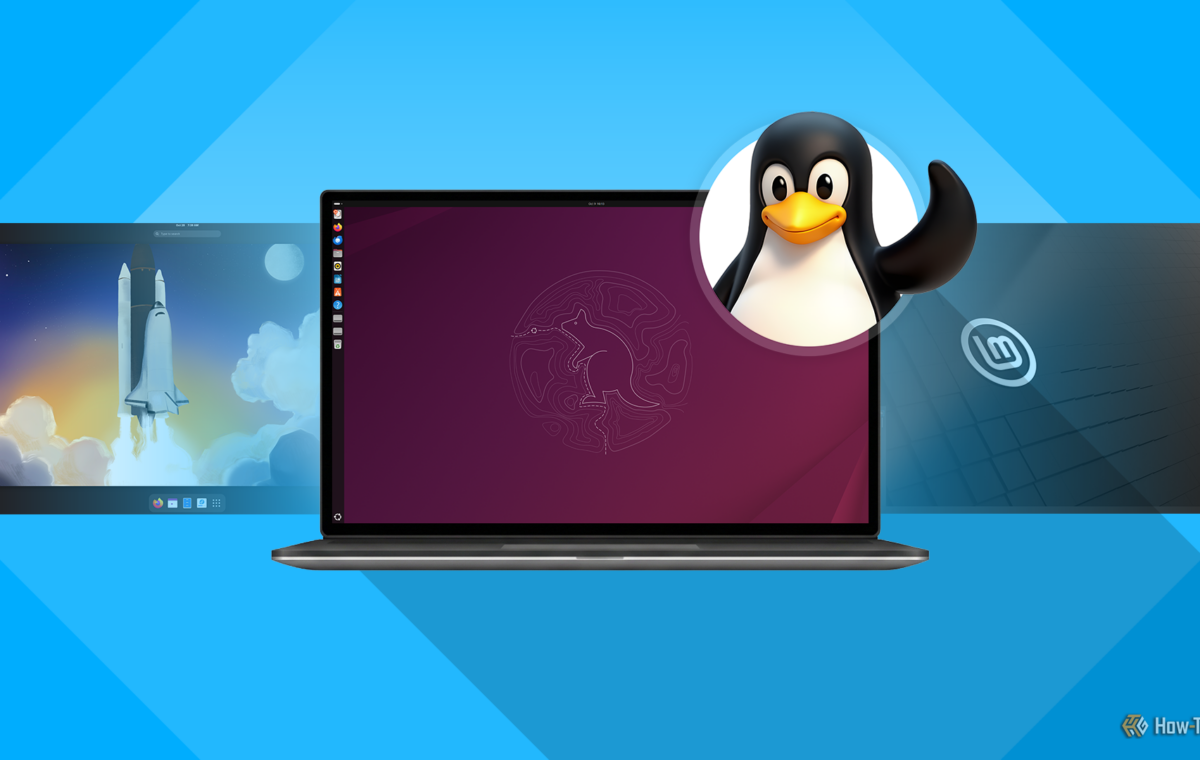
I am mainly a Linux user, but sometimes I have to return to Windows for work or gaming. Whenever I do, I notice that Windows hasn’t evolved in any meaningful way since I first used it. Compared to Linux, it feels like it’s stuck in time. Let me explain what I mean.
For the past couple of months, I’ve been using Hyprland on my main workstation, and it’s been the most fun I’ve had with computing in a while. Hyprland is a dynamic tiling window manager. I’ll explain what that means first.
A window manager, if you don’t know, is a part of the operating system which decides how application windows look, where they’re placed, and how they behave. On Windows, the window manager gives you free floating windows, which you can then drag around, resize or snap side-by-side with other windows using the preset layouts. This type of window manager is the most common one and the kind you’ve probably used the most.
There’s another kind of window manager which doesn’t display free-floating windows at random. Instead, whenever a new window or pop-up is launched, the window manager neatly slices the current window in half to make room for the new one. In this way, a full screen window turns into two halves or “tiles.” You can repeat this slicing as many times as you want.
The best part is, you don’t need to decide where to place the new window because the window manager dynamically adjusts the placement of every new window. So a window manager that can “tile” windows dynamically would be a dynamic tiling window manager, and that’s exactly what Hyprland does.
Everything is keyboard controlled: you switch between windows using Super+Arrow keys, you close windows with Super+W, resize them using Super+R and then arrow keys to change the dimensions, and you can even jump between virtual desktops by using Super+the number row. It takes just a little bit of an adjustment period, but once you learn the keystrokes, you will feel the mouse slowing you down. It took me about a day to learn the shortcuts and a day or two more to start using them purely with muscle memory. It’s been months since I switched to this tiling setup and I never want to go back.
The placement of windows and their behavior might seem trivial on the surface, but the window manager can make a big difference in the computing experience.
Linux allows you to install new window managers and swap out the default one. You can even replace the entire desktop environment.
When you install Windows, you’re taken through a setup experience, and you can only try it when the OS is fully installed and updated. That means you have to fully replace the current version of Windows to experience the new one, and if you end up disliking it, you’ll have to reinstall the older version to roll back the upgrade.
Installing Linux isn’t like that. You don’t have to install the seemingly endless selection of distros just to try them because Linux lets you test drive the OS before you commit.
Once you’ve created a bootable media for the Linux distro and loaded it, you’ll be taken to a full-fat version of the OS. This is called a live bootable environment—a full, functioning operating system that just launches off a USB stick without installing.
You can experience the OS, test features, install new apps, and just “test drive” the operating system before installing it. No permanent changes will be made to your main system until you install the Linux OS.
Some people even configure the bootable USB media with something called persistence, which allows you to carry an entire portable operating system on a USB stick. A live USB with persistence enabled can plug into any computer and launch your operating system with all your files, apps, and settings ready to go. Some Linux distros are purpose-built to run off a USB stick and RAM with native persistence support. Operating systems like these are perfect for reviving old laptops and PCs which no longer support modern software since they can run entirely on RAM.
Puppy Linux, for example, only requires 512MB RAM and a Pentium 2 processor to run, and it’s a fully-functional graphical operating system that can run modern apps. Imagine running a modern browser on a computer from 2005—Puppy Linux makes it possible. I’ve actually tested Puppy Linux on one of those old Dell Latitude laptops, and I was pleasantly surprised by how usable it was (other than some Wi-Fi issues that I had to sort out).
If there’s one thing Linux unequivocally does better than Windows, it’s system updates. It all boils down to one concept: Linux lets the user decide, and Windows decides for the user. Anyone who uses Windows for any amount of time eventually runs into the dreaded Windows update screen eventually. Windows updates are automatic and mostly installed without warning or permission. You might need the computer urgently for work, but if Windows decides to install an update, you need to sit through the update (however long it takes because there’s no way to stop it either, because you risk breaking your device) before you can use it.