How much are you paying your ISP every month? If you ask me, it's always too much, but I've had some bad luck with mine (one tried to get me to pay them $1,000 to let me leave).
Even if you don't think your bills should be lower, or that your internet can get any slower, you might be able to pull off a coup if you just tweak your router settings. That's what I did, and I'm keeping some extra money in my pocket every month now. Here's what helped me.
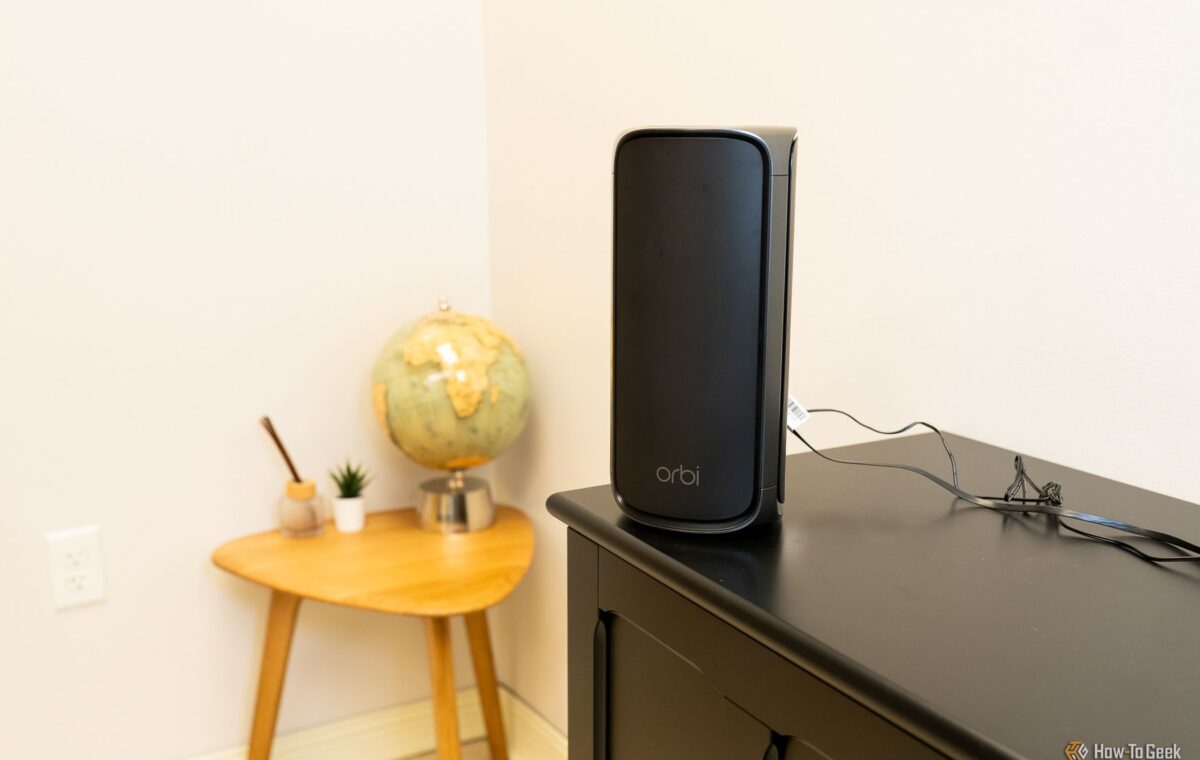
Having a router in your living room is a constant battle of wanting the place to look nice vs. wanting fast internet. In my case, I've always prioritized the latter, what with my job and all, so I didn't mind my router being an eyesore somewhere in plain sight. But many people choose to stuff theirs inside various cabinets or under the desk, which is a quick recipe for a Wi-Fi dead zone.
Radio waves lose a lot to metal shelving, mirrors, fish tanks, and foil-backed insulation, so you don't want any stuff near your router. (Unless you're adventurous like my colleague Ismar, who actually wrapped his router in aluminum foil to give it a boost.)
So, yeah, router placement. Central, high, and out in the open! Your internet might be faster or less spotty if you follow this advice.
Your fiber internet is fast, but your home network probably isn't
If you bought your own router (which I always recommend doing) and plugged it into the combined router-modem you got from your ISP, there's a good chance the ISP router is still broadcasting its own Wi-Fi.
That's right, you're essentially running two networks on one connection, and they're both eager to get some of that limited airtime in each room. There's also double NAT, which breaks port forwarding, UPnP, and some VPN game traffic. All of this can feel like slow internet, but it doesn't have to be. It could just be the way it's set up.
To fix this, log into the ISP gateway's admin page and either switch it to bridge or modem mode, or at minimum disable both of its wireless radios.
Here's a big one, although it may sound like little more than some weird letters. Most routers hand you a Quality of Service (QoS) page full of presets. They'll promise you the sun and the moon, or at the very least, prioritizing gaming or streaming. In the end, many of them don't do a whole lot. They just sort traffic without controlling how much of it piles up waiting to leave.
Meanwhile, Smart Queue Management (SQM) targets that pile of traffic, solving bufferbloat, which is latency that only pops up when your connection is busy. This is why a speed test can look fine and your ping can look steady, but a video call or a ranked match ends up in some miserable lag.
To address this whole thing, check whether you've got it by running the Waveform bufferbloat test, ideally with your PC plugged into the router. If your connection is graded below a B, there's room to improve. If your router has SQM, and plenty do under the QoS menu, switch it on. Next, enter about 90% of the speeds you just measured with that bufferbloat test.
Sorting out DNS-related stuff isn't always easy (or rather, it's easy to get it wrong), but it can be worth it. Whenever you visit a website, any website, the first thing that happens is lookup, a process that turns that address you just typed into your browser into a number your device can actually view. That's DNS, and your ISP handles it by default, so there's nothing you have to do—but you can.
This is worth looking into if your internet seems okay otherwise, but websites load slowly. That implies your ISP's servers may be slow, too.
To sort this out, look for DNS settings under WAN or DHCP in your router, and then put in Cloudflare's 1.1.1.1 or Google's 8.8.8.8.