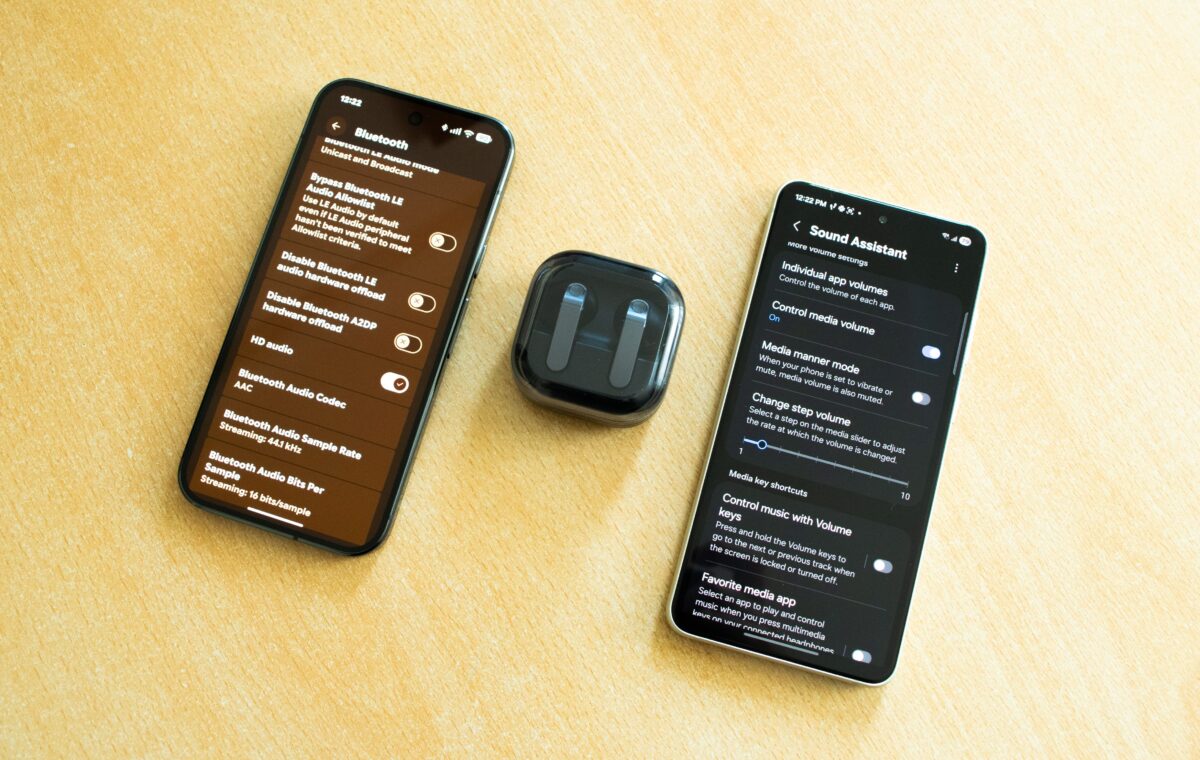
If you own a Google Pixel or Samsung Galaxy phone, you can enable a selection of audio features that will instantly improve the sound quality of your phone's speakers, the earbuds you're using, and more. The only catch is that most of them are hidden away, especially on Samsung phones. Even if you don't own a Pixel or a Galaxy, Android's Developer options menu hides a few handy Bluetooth audio settings every Android phone owner should tinker with.
Good Lock is hands down my favorite feature on Galaxy phones and one of a few One UI features I genuinely miss having on my Pixel. One of Good Lock's best features lets you fine-tune your media volume granularity. To do this, you first need to download Good Lock. Next, open Good Lock, locate the Sound Assistant module, and download it. Once it's installed, open it, locate the Change step volume slider, and customize it to your liking.
By default, you only have 15 volume steps, but you can increase this to 150 in Good Lock by selecting a value of 1 on the slider. Personally, I set mine to 75 steps (a value of 2 on the slider) on my Galaxy S21 FE. Note that this works with both your phone's speakers and headphones or earphones.
Another Sound Assistant feature I highly recommend checking out is Bluetooth metronome, which lets you sync your earbuds' Bluetooth audio delay with videos. I keep this setting at +2 on my Galaxy Buds Pro, even though I have Game Mode enabled in the earbuds' settings. Game Mode reduces Bluetooth audio latency, but not enough to eliminate the audio lag I notice in videos, unless Bluetooth metronome is enabled as well.
Feel free to explore every setting in Sound Assistant—you'll likely find a few more that become indispensable in your daily routine.
Samsung Galaxy phones have another powerful audio feature that can be extremely handy in specific situations. Separate app sound is the name of the game, and it lets you listen to two audio sources simultaneously on the same phone through two different audio outputs.
If you have Bluetooth earbuds connected, enabling Separate app sound lets you, for example, listen to Spotify on your earbuds while another app plays audio through your phone's speakers at the same time. This can be super useful if you, for instance, hand your phone to your partner or child to watch YouTube or Netflix while you keep listening to music on your earbuds.
To enable Separate app sound, open Settings, go to Sounds and vibration, and scroll all the way down until you locate Separate app sound. You can then enable it (you have to manually enable it every time you want to use it, by the way), select the app you want to use with it (you can add any app on your phone if it isn't already on the list), choose the audio device, and tap OK on the notification.
While Pixel owners don't have such snazzy audio features as Galaxy phone owners, there's one audio option you should definitely enable. It's called Adaptive Sound, and it uses your Pixel's microphones to automatically adjust the sound output from the phone's speakers depending on your environment.
The effect is subtle, but it can make a noticeable difference if you watch videos in a relatively loud environment or prefer talking to people on speakerphone. It's dynamic and constantly works in the background whenever audio is playing through your phone's speakers.
So, for instance, if you watch a video in a small, quiet room, it may reduce the bass a bit to make the audio sound more natural in that environment. But if you step out onto your balcony overlooking a busy roundabout, the feature may automatically boost the mids and highs to help combat the surrounding noise.
The catch is that some Pixels have the feature enabled by default, while others don't. In my case, it wasn't enabled, even though the Pixel 10 series should have it turned on out of the box. Anyway, to enable Adaptive Sound, go to Sound & vibration > Adaptive Sound and turn on the toggle.
One UI doesn't have a direct equivalent to Adaptive Sound, but it does have an option that's even better if you ask me. It's called Adapt sound, and it adjusts your headphones' or earbuds' sound output that's customized for your ears only. The feature includes three default profiles tailored for different age groups, but I recommend creating a personalized sound profile.
When you set up a bespoke sound profile, you'll take a hearing test that analyzes both your left and right ears and adjusts the sound output for each ear separately. As you can see in the screenshots, my right ear hears low frequencies a tad worse than my left ear, so my custom sound profile boosts low frequencies, but only in my right earbud.
Adapt sound also allows you to select a preferred ear for calls. Since I'm a leftie, I selected my left ear as the preferred ear for calls. Lastly, you can choose whether Adapt sound applies to calls, media, or both. Adapt sound can be an incredibly handy audio feature, especially if you have hearing loss. It's not a miracle worker, but it can noticeably improve the listening experience with your earbuds or headphones.