A couple of years ago, Microsoft introduced a new specification that allowed laptops and desktops to brand themselves as "AI PCs" or "Copilot+ PCs." One of the requirements to meet the specification was having a dedicated physical Copilot key.
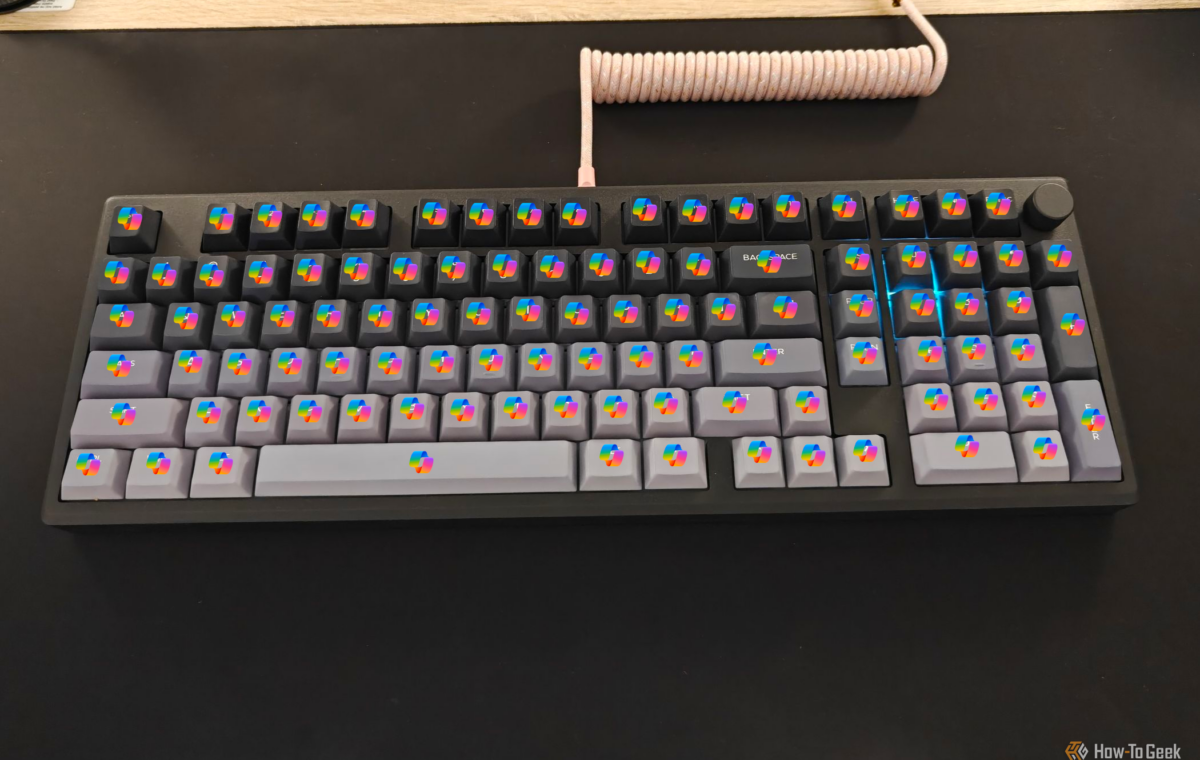
Looking at my own custom gaming PC and mechanical keyboard, I thought: why not take it a step further and turn the entire keyboard into one giant Copilot key? That way, I'd be living on the absolute bleeding edge of modern computing. I'd have nothing but Copilot, everywhere, all at once. And that's exactly what I did.
The first thing I had to do to make this experiment work was rebind every key on my keyboard to launch Copilot. There are a few third-party apps that can do this, but I found it easiest to use the popular QMK/VIA firmware that my Epomaker Galaxy100 Lite supports.
I already had VIA installed, so I plugged in my keyboard and launched the app.
I went to the Macros section and recorded a macro that automatically presses Windows+C, the standard hotkey for launching Copilot. Next, I went back to Keymap and proceeded to rebind every single key to the newly created macro using my mouse.
Just like that, every key on my keyboard became a Copilot key.
And when I opened the Copilot app for the first time in my life, I immediately noticed a problem: there wasn't a dedicated speech-to-text dictation feature, only the option to talk directly to Copilot. So, the first thing I did was ask Copilot how to add voice dictation to the app so I could communicate with the AI tool more easily and copy and paste its outputs.
Copilot pointed me toward the Windows Settings app, where I found the Voice Access accessibility feature—and this turned out to be absolutely essential for the experiment. It let me talk freely into my microphone to type quickly, leaving Copilot to clean up all those filler words and, hopefully, turn my rambling into something that actually resembled written text.
It's also worth pointing out that, besides my microphone, my mouse was essential to making this experiment work.
Without it, I'd have been completely stuck—I wouldn't even have been able to copy and paste text or send messages to Copilot, since I no longer had an Enter key to press or any other functional keyboard input. The mouse was my lifeline in this setup.
The first thing I realized was just how much I relied on muscle memory for both my day-to-day work and general computer navigation.
Since I was relying on a lot of copying and pasting to make this work, I kept subconsciously hitting Ctrl+C and Ctrl+V, only to bring Copilot to the forefront each time. But the real struggle was losing even the most basic navigation keys and shortcuts, like Enter, Backspace, and Alt+Tab.
As someone who leans heavily on the keyboard for everything from navigation and shortcuts to actual typing, this almost felt like losing a limb. Just like that, all those deeply ingrained habits became useless in favor of the almighty Copilot key.
It wasn't a complete disaster, though, as I quickly discovered that Voice Access could press the buttons I needed for me. I could literally say "press Backspace" or "press Enter," and it would carry out the command. Soon after, I learned that I could also delete or rewrite entire sections simply by selecting the text before saying the command or dictating the new text.
This also meant that every time I wanted to delete a letter or break up a paragraph, I had to spell it out verbally. It wasn't as quick as using my keyboard, but it was better than having to ask Copilot to handle these mundane tasks for me.