Nathaniel Pangaro is a tech enthusiast who dives deep into Apple’s world, from Macs and iPads to iPhones, Apple Watches, and every gadget in between. He loves turning tricky tech features into guides and reviews that are actually fun to read—and easy to use.
At AppleInsider, he broke down the latest Apple releases with hands-on testing, clear explanations, and visuals that make readers feel like they’re right there with him. He also keeps SEO in mind so people can actually find his work online.
He’s also written for The Student Loan Help Group, turning tech and finance topics into simple, helpful, and engaging content. Nathaniel also takes photos and creates rendered visuals to showcase devices and highlight features.
When he’s not writing, Pangaro enjoys listening to music, working out, baking, and spending time with his pets. These hobbies help him recharge and bring a fresh, creative perspective to his work, keeping his writing energetic and relatable.
Pangaro's goal is simple: help readers get the most from their Apple devices and actually enjoy doing it.
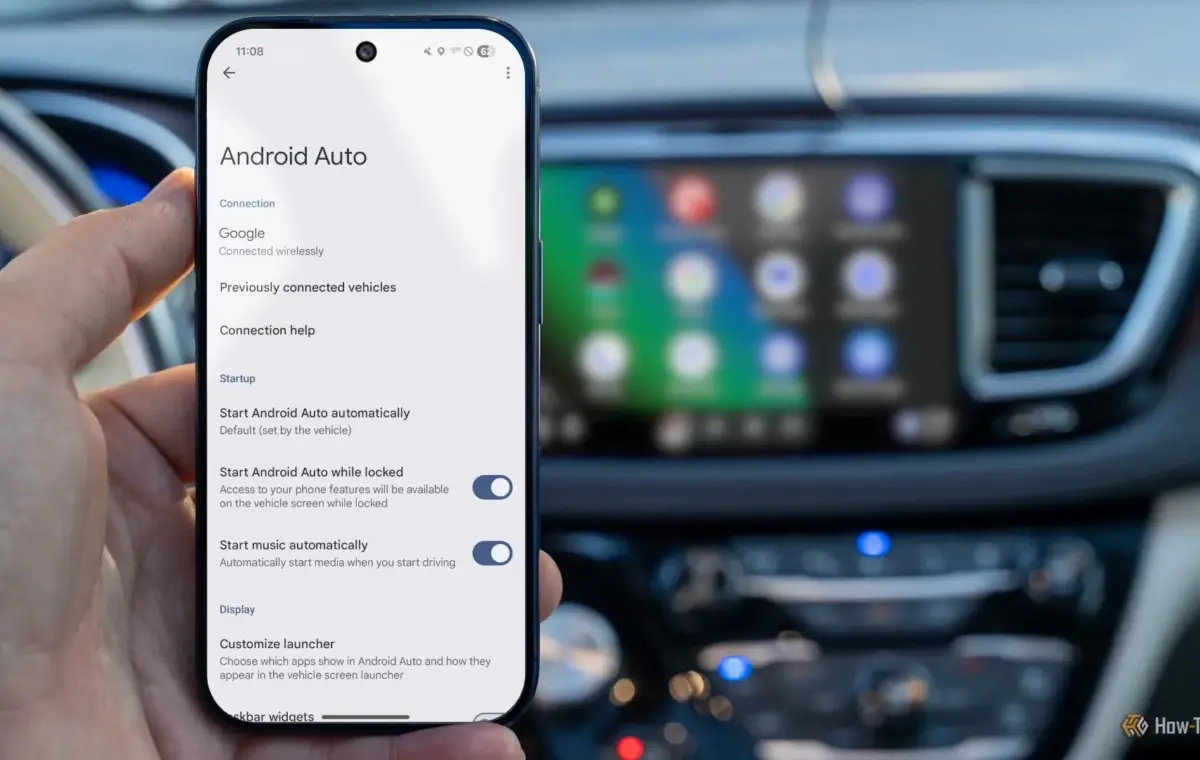
Android Auto is a great tool to have when driving because it provides an easy and accessible way to use your phone more safely while the car is moving. If your car supports it, there are several ways to connect your phone to Android Auto—especially wirelessly.
However, even cars that do not support the feature can still get Android Auto. With that, here are the different ways to set up wireless Android Auto in your car, whether it already has the wired version or not.
Not every car supports wireless Android Auto. I have a 2020 Honda Civic, which isn’t the newest but isn’t too old either, but it only supports the wired version. However, my mother has a 2025 Honda Pilot, and it supports the wireless version.
Yet if you do have a car that supports the wireless version, it’s really simple to set it up without having to find a USB-C cord to plug into your vehicle. The hardest part is really figuring out where your phone connection settings are in your car’s infotainment system.
As I was setting everything up in the Honda Pilot, the settings I needed to access were in the Connection tab on the infotainment screen. Obviously, if you have a different or older car, this setting will be found elsewhere.
Once I tapped into those settings and started the pairing process, I went to my Android device's Bluetooth section in Settings. From there, I looked for my car—which popped up at the bottom of the list—and selected it.
Tapping my car’s name put the phone into connection mode, then displayed a six-digit code that I needed to match the one on my car's screen. If both matched, then I hit the Pair button on my device and the two connected.
The car’s screen will then ask you if you want to enable Android Auto for your phone. From there, you will choose “yes” and then continue with the process.
If the pairing is successful, a splash screen will appear on your device welcoming you to Android Auto and advising you of the information it needs to access while running. You can also manage what information it accesses.
Now, whenever I get into my mother’s car, my phone will automatically connect without me having to pull it out or press any other buttons. It’s fast and easy to do, and if I need to add another device—like a family member's or friend’s phone—the setup is easy to repeat.
As previously mentioned, even if your car only supports wired Android Auto, there is a way to make it wireless: an adapter. Like an adapter that lets you plug a USB-A cable into a USB-C port, this adapter lets you access Android Auto wirelessly even when it’s not natively offered in your vehicle.
Now there are multiple adapters you can pick up on Amazon for different price ranges. More expensive ones usually come with better design and chip integration, but if you don’t care for all of that, a cheaper option may suffice.
However, when choosing an adapter, there are two things to keep in mind.
First, you must already have Android Auto in your car. This adapter will not add it to your car’s infotainment system if it’s not already available through a wired connection.