When you’re working with Microsoft Copilot to create a business document, you might find yourself torn between two opposing instincts. Part of you is itching to edit its output right away, while another part wants to keep prompting the AI assistant to refine the generated text.
The Pages feature in the M365 Copilot app is a dynamic text editor that works in a window alongside your Copilot chat. It lets you turn the AI’s response into a persistent document (a “page,” in Microsoft parlance) that you can edit manually while continuing to collaborate with Copilot on it.
You can also invite your co-workers to collaborate on it, either by sharing the page with them or by embedding it in a Word document, Outlook email, OneNote note, or Teams chat as a Loop component. (More on that later.)
In this guide, we’ll go over how to use the Pages tool in the M365 Copilot app. It’s available with a paid Microsoft 365 plan and, notably, does not require a separate Copilot license. This means that enterprise users who have a Microsoft 365 plan but not a Microsoft 365 Copilot add-on plan can use Copilot Pages.
(Confusingly, there’s also a lower-end free Copilot app for users who don’t have an M365 account. It has its own basic Pages tool, but it doesn’t include all the features of Pages in the M365 Copilot app.)
Copilot Pages works within the M365 Copilot app. Head to microsoft365.com (the old-school office.com works too), where you’ll see the Copilot Chat interface front and center.
Get your first page going: Simply type in a request for Copilot as usual.
To start a Copilot page, start a Copilot chat.
When Copilot gives you a result that you want to turn into a document, such as a list of action items or an outline for a marketing plan, scroll to the bottom of the result and click the pencil (Edit in Pages) icon. (Depending on your M365 subscription, you might have to click the three-dot icon and then select Edit in Pages from the menu that pops up.)
Click the Edit in Pages option below Copilot’s result to launch a page.
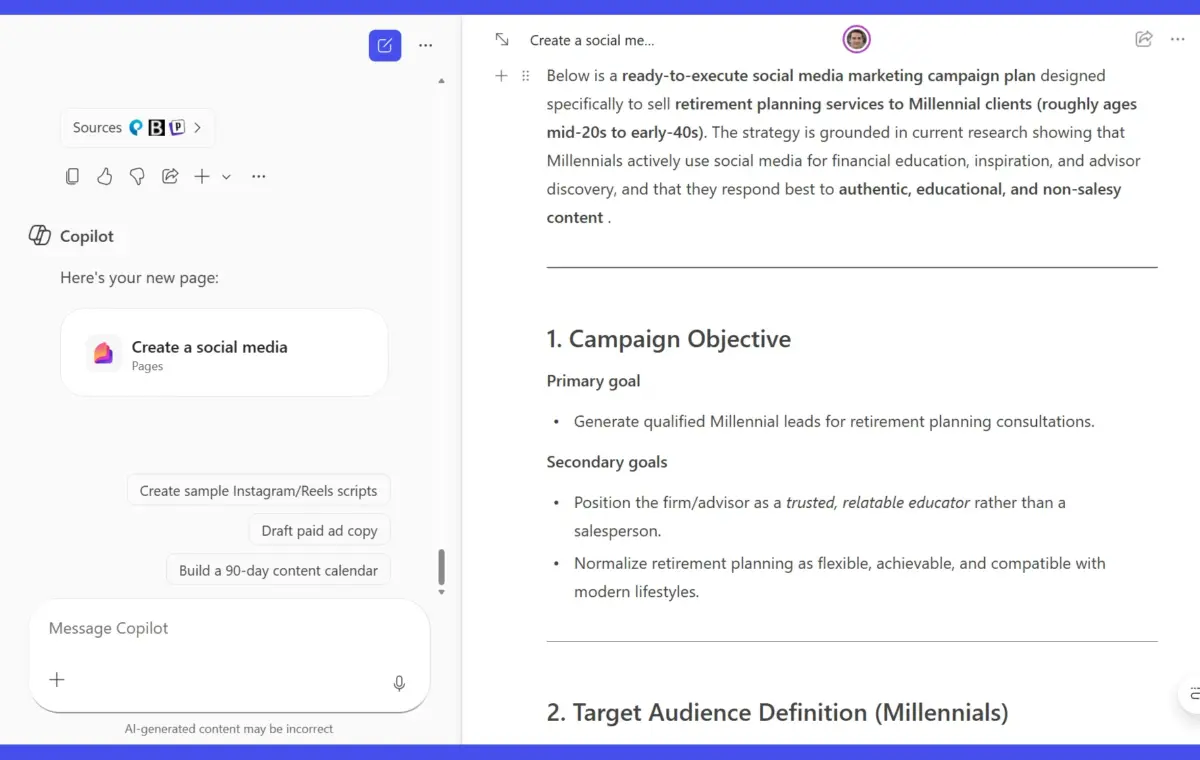
The screen will split into two windows, with your chat with Copilot on the left and a document canvas (your new page) containing the generated text on the right.
Your new page opens to the right of your Copilot chat.
Give your new page a name: Before you do anything else, move the pointer to the upper-left of your page. The first few words you wrote to Copilot in your prompt appear inside a text box. Click the text box and type in an appropriate name for the page.
Each text item on your page canvas (paragraph text, heading, bulleted list item, etc.) is a separate element that you can edit in various ways.
Add or edit text: Click inside a text element and start typing. To select a word, double-click on it. To select a line of text, triple-click on it.