When you're navigating from A to B, the last thing you want to do is constantly switch back and forth between different apps. Any time you spend off the Google Maps navigation screen is time when you could miss that crucial turn. Thankfully, Google Maps has some useful integrations that mean you don't need to keep flipping from app to app.
If you're going on a long road trip, there's nothing like a good playlist to help pass the time. Every year when we go on vacation, compiling the family playlist for the journey is one of the highlights, even if my kids choose some truly awful songs.
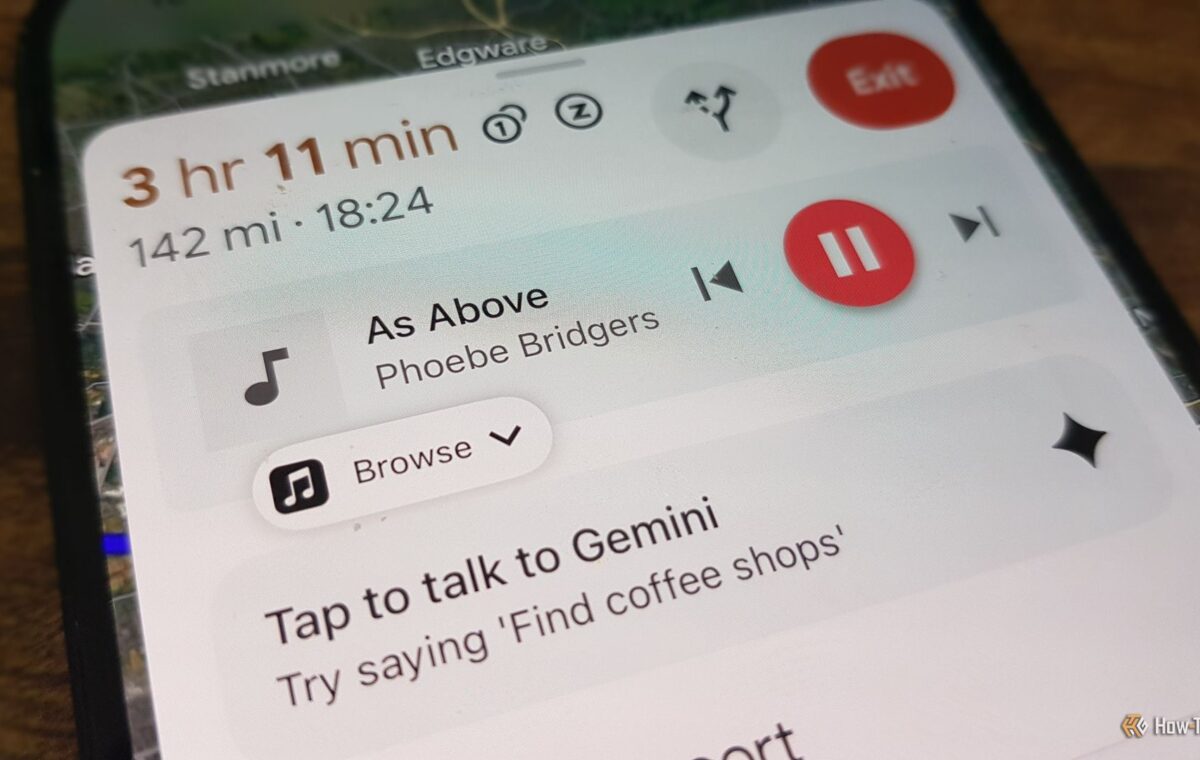
When you're driving, you don't want to have to keep switching to the Apple Music or Spotify app to control your music. The good news is that you don't have to. Google Maps offers in-app controls for both music services.
To show music controls in Google Maps, tap your profile icon and select Settings. Choose Navigation and select Music playback controls. Choose the music service you want to use, and you'll see playback controls in Google Maps when you're navigating.
Spotify is a pioneer in music streaming. It features a vast library, impressive bitrate, curated and custom playlists, as well as offline streaming. Spotify is available for free and for a monthly or annual fee.
You're looking for somewhere to eat nearby. You use Google Maps to show restaurants near you and find one that has good reviews and is fairly nearby. You then close Google Maps, open a booking app such as OpenTable, and try to make a reservation, then return to Google Maps to navigate to the location.
If all this sounds like too much switching between apps, there's a much simpler option. Google Maps allows you to complete reservations for restaurants or events directly from the app.
When you find a restaurant in Google Maps, select it to open its listing. Scroll down, and you should see an option such as Find a table. Tap the link, and you can make a booking for participating restaurants. It won't work for every restaurant, but there are plenty that support reservations through popular booking services.
Even though I lived in a time before Google Maps, I still have no idea how humans ever managed to find their way around or meet up with each other before it existed. Being able to share your location with other people so you can find each other or just to keep them updated on your whereabouts has become something that I can't imagine living without.
If someone messages you, asking "Where are you?" or "How long will you be?" while you're in the middle of navigating, you don't want to have to start typing out a reply while you're driving.
Google Maps solves this problem by allowing you to share your live location in a couple of taps. While navigating, swipe up on the information card and tap Share trip progress. Choose the person you want to share your journey with or select a messaging app and choose the appropriate contact. Send the message, and Google Maps will share your live journey and ETA.
You're in the middle of a long drive but can't concentrate on your journey. Your mind is distracted because you're desperately trying to remember the name of the actor who played the second incarnation of Doctor Who. Your subconscious knows and is teasing you by telling you that the name has something to do with fish, but that's as close as you've got.
If you're driving, you're not going to be able to open Google and look up the full list of Doctor Who actors. Opening an AI chatbot would be easier; you could then ask the AI using your voice.
With Google Maps, you can do exactly that without leaving the app. When you're navigating, a Gemini icon will appear on the directions. You can tap the icon to speak to Gemini, or say, "Hey Google" if you've turned on the relevant option in the Google Maps settings. You may need to grant Google Maps microphone access to use this feature.
You can then ask Gemini anything you want. You can even ask Gemini about your journey, such as what time you're due to arrive, or use basic navigation controls such as adding a stop or asking for alternative routes.