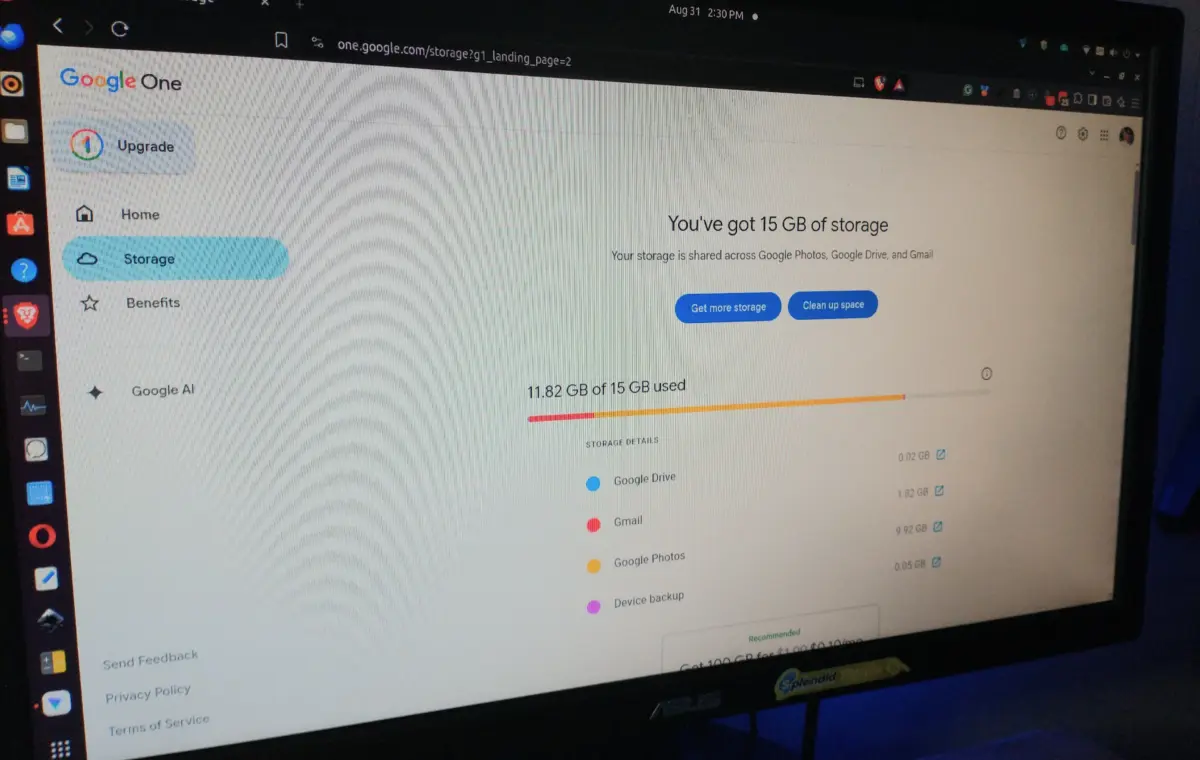
I love the simplicity and automation of my Google Account storage and how I can save valuable photos, videos, screenshots, PC/device files, and my Android phone data with little effort, but I don't like how easily and quickly it fills up, especially with default settings. I was frustrated, so I decided to take control of what Google syncs to regain valuable space. Google Account storage has definitely changed over the last decade, like Google Photos' Image Saver media becoming part of your storage space (June 1, 2021) and Drive separating from Photos (July 2019) because it was "supposedly" confusing to consumers.
While Google Photos is always uploading media, Drive saves your Android device data and shared/collaborative files, while Gmail fills up your cloud space with emails and attachments. The list could go on, but you get the idea. Paid plans are highly affordable and competitive, but by design, it is too easy to fill up storage space, hoping you'll upgrade to a paid plan through Google One. Google One appears in space management pages but only to promote subscriptions and manage your existing cloud data.
Google uses the term "Google Account Storage" for personal accounts (Drive, Photos, and Gmail storage spaces) to avoid confusion with Google One — a paid subscription service with added features that also increases Google Account Storage.
With so much automation and convenience, it doesn't take too long for your free storage to reach its limit, so it's important to understand what syncs where, control what gets stored, and manage it so it doesn't fill up fast.
When I removed unnecessary files from Google Photos, my cloud returned to full capacity almost immediately. I realized there was "pending" media waiting to be uploaded while I was deleting what I no longer needed. If that wasn't enough, I forgot to turn off syncing on some of my devices that have the Google Photos app. If one is still active, it will upload images and videos, which fills up space even more.
Let us not forget that Google also defaults images to "Original quality," which uploads media at maximum size. You can change the quality by going to Google Photos in a browser, then clicking the gear icon on the top right, and choosing Storage saver. On mobile, all you need to do is click your profile icon, then tap Photos settings -> Backup -> Photos & video quality -> Storage saver.
One thing I always recommend is to search for videos and delete those first, since they have the largest file sizes. You can type "videos" in the Google Photos search bar on mobile and PC to review and delete any videos you don't need. While browsing, you can click a video to watch it. You can also delete them via the Photos cloud management settings, but the search bar is the most efficient way since it filters results quickly and easily.
I've had many useless videos uploaded that were mistakes, unwanted files, or mess-ups, and I easily find and delete them using the above method. It gives me detailed information on the right side whenever I click a video.
Google Drive may be the all-around, automatic storage bin for Docs, Sheets, Meet recordings, WhatsApp backups, Android backups, and more, but it's also the place where you manually upload files. I've uploaded PDFs, videos, images, screenshots, drawings, notes, and even Microsoft Office documents. I have to admit that some of it was not really necessary, especially since I use pCloud to sync PC folders, mobile images and videos, and other data.
While Google Photos automatically syncs your media, sometimes you need to upload files to a Google Drive folder or project. All this data adds up fast, and before you realize it, you've reached your 15GB limit. If you use Drive for Desktop, that adds even more data, although Google Drive ended automatic syncing to Google Photos on its Drive for Desktop app.
On the collaborative side of storage, be aware that deleting shared, editable files you created removes access for everyone whom you shared it with. You'll see an icon displaying two people on every file you share. So, if you don't need to share a doc, spreadsheet, or even a video, avoid it whenever possible. I've shared copies and originals, creating more space consumption than was necessary. If I don't need a particular team file I created, I'll transfer the ownership (if applicable) so I can safely delete it.
On the collaborative side of things, be aware that deleting shared, editable files you created removes access for everyone whom you shared it with.
Speaking of shared files, you'll find other people's docs and more in your "Shared with me" section of Google Drive. As long as you do not create a copy or save a file or folder to your Drive, it won't affect your storage space — only the owner's. But it is a good idea to maintain this section to reduce clutter and avoid any confusion. I regularly check this area and remove old files I no longer need. It is perfectly safe to do so since you are not the owner.
Removing "Shared with me" files and folders in Google Drive is possible, even when the trash can and move options are grayed out. The trick is to select the file or folder, then drag it into the trash can on the left side in the navigation bar, not through right-click options or the icon at the top of the file list.
Device backups are another area of space consumption, whether it is from an Android device or a Google Chromecast with TV dongle. While the Google app on iPhone, Android, and even Amazon syncs files to the cloud, actual Google devices sync your account data. But if you also sync iPhone contacts to your Google account, it increases the space, although that is a minor change.